IGIPTV Knowledge Hub
IPTV on Smart TV: Complete Guide for Samsung, LG and Android TV
A Smart TV is the tidiest way to watch IPTV: no extra box, no spare HDMI port, no second remote. Whether that works cleanly comes down to one thing — the television's own operating system and what it allows you to install.
This guide covers the three platforms most common in UK homes: Samsung's Tizen, LG's webOS, and Android TV / Google TV. It also explains what to do when your set simply won't play ball.
How IPTV works on a Smart TV
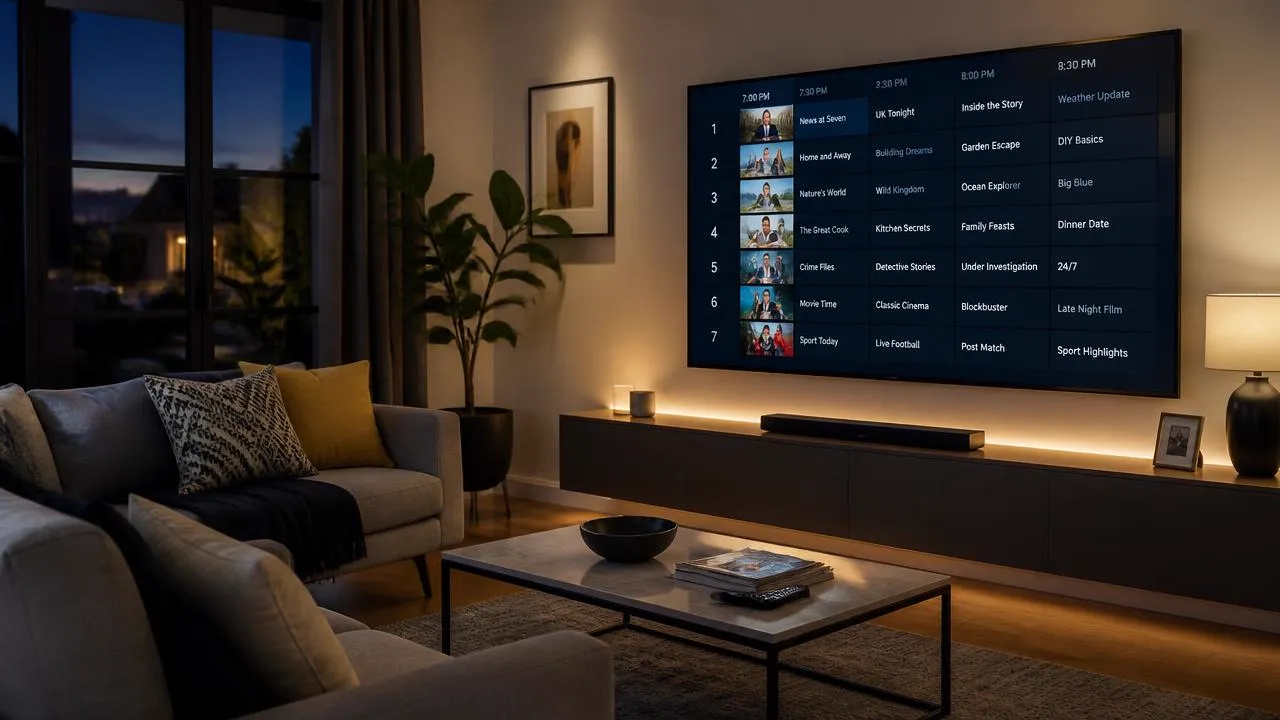
Your television takes the place of both the set-top box and the aerial. A player app installed on the TV connects over your broadband line to your provider's servers, pulls down the channel list and programme data, and plays whichever stream you select. If the chain from source to screen is new to you, how IPTV works explains each stage, and what IPTV is covers the basics.
Nothing is stored on the television. Turn it off and the app simply reconnects next time.
Which Smart TVs are compatible?
| Platform | Typical brands | What to expect |
|---|---|---|
| Tizen | Samsung | Curated store; a small number of approved player apps, straightforward when one is available. |
| webOS | LG | Similar curated approach; check the store on your specific model year. |
| Android TV / Google TV | Sony, Philips, TCL, Hisense and many boxes | The most flexible option, with the widest choice of player apps. |
| Other / older sets | Various | Often no suitable app; a streaming stick or box is the usual answer. |
IPTV on Samsung Smart TV (Tizen)
Step by step
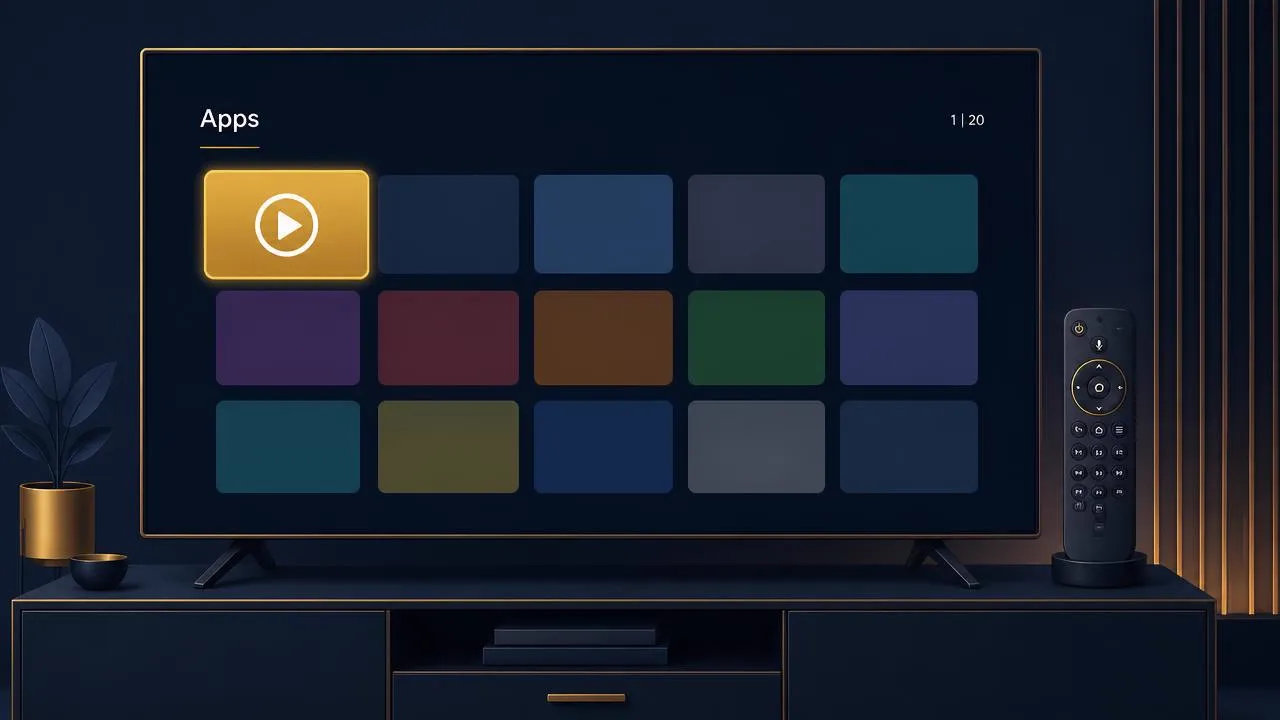
- Connect the television to your network and confirm it is online.
- Open the Apps section and search the store for a compatible IPTV player.
- Install the player and open it.
- Enter the credentials your provider issued — usually a playlist URL or an Xtream Codes style login.
- Wait for the channel list and programme guide to load.
If the store on your model has no suitable player, skip ahead to what to do when your TV can't install one.
IPTV on LG Smart TV (webOS)
The process on webOS mirrors Samsung's: open the LG Content Store, search for a compatible player, install it, and enter your details. Availability varies by model year and region, so check your own set rather than assuming from a forum post about a different model.
Older webOS televisions can be slow to redraw large channel lists. Sorting into favourites rather than browsing thousands of entries makes a real difference to how responsive it feels.
IPTV on Android TV and Google TV
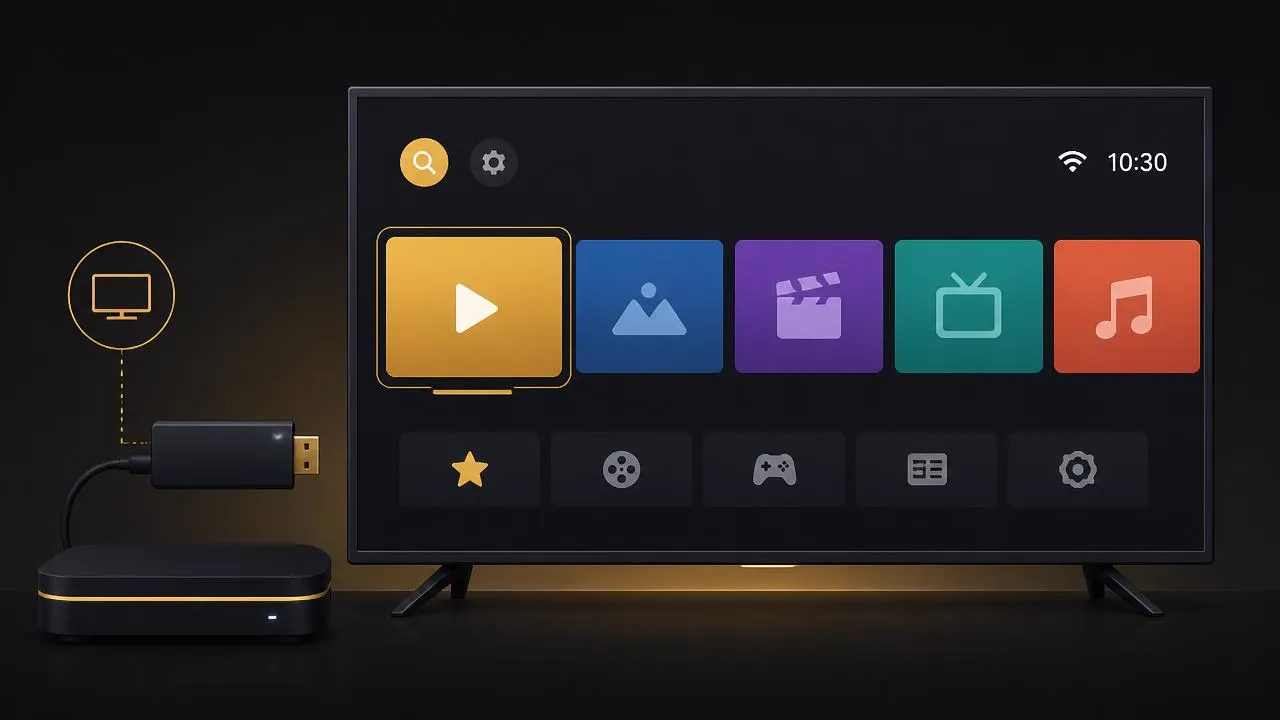
Android TV is the most accommodating platform. The Play Store carries a wide selection of player apps, the hardware is usually quicker than a television's built-in chipset, and the interface handles big channel lists and programme guides comfortably.
If you are choosing between apps, our guide to the best IPTV player compares them on compatibility, guide support and performance.
What if your TV can't install a player?
This is common, and it is not a problem worth replacing a television over. Plug a streaming device into a spare HDMI port and use that instead:
- A Fire TV Stick — see our IPTV Firestick walkthrough.
- An Android TV box or Google TV dongle.
- A small computer or mini PC connected via HDMI.
The picture quality is identical; you are only changing which device runs the app. Every option is covered in the IPTV setup guides.
Getting the best picture and response
- Use a wired connection where you can — televisions are often the furthest device from the router.
- On Wi-Fi, prefer the 5 GHz band and avoid placing the router behind the TV unit.
- Set the television's picture output to match the stream: forcing 4K on an HD channel gains you nothing.
- Build a favourites list so the app isn't rendering thousands of channels on every launch.
- Close background apps and restart the set occasionally.
If the picture stalls mid-stream rather than simply looking soft, the cause is usually the connection — our guide to internet speed for IPTV explains the requirements, and the IPTV buffering guide covers fixes.
Common Smart TV problems
| Symptom | Likely cause | First thing to try |
|---|---|---|
| App won't install | Platform store doesn't carry a compatible player | Use a streaming stick or Android TV box instead |
| Channel list is empty | Credentials entered incorrectly or subscription inactive | Re-enter details exactly, then contact your provider |
| No programme information | EPG source not configured or still downloading | Check the guide settings and allow it time to populate |
| Menus feel sluggish | Limited processing power in the television | Trim the channel list to favourites, or add a streaming device |
| Picture stalls during live events | Network congestion at peak time | Move to a wired connection and reduce other network use |
Final thoughts
On a Smart TV, IPTV is about compatibility more than anything else. Check what your platform allows you to install, use a favourites list to keep things quick, and reach for a cheap streaming stick if the store lets you down.
Explore IPTV UK plans with IGIPTV when you're ready to set yours up.
Frequently asked questions
Can any Smart TV run IPTV?
Most can, but not all. It depends on whether a compatible player app is available in that television's own app store. Where it isn't, a small streaming device plugged into an HDMI port solves it.
Do I need extra hardware for IPTV on a Smart TV?
Not if your television's app store offers a compatible player. Older sets and locked-down platforms usually need a streaming stick or Android TV box.
Why is my Smart TV slower than a streaming stick?
Built-in TV processors are usually less powerful than a dedicated streaming device, so menus and channel changes can feel sluggish even when the stream itself is fine.
Does IPTV work over Wi-Fi on a Smart TV?
Yes, though televisions often sit far from the router with a metal panel in the way. A wired connection or a 5 GHz signal gives a noticeably steadier picture.