
IGIPTV Knowledge Hub
What Internet Speed Do You Need for IPTV? Complete Guide
"How fast does my broadband need to be?" is the question people ask before switching to IPTV. The honest answer is that the headline speed on your bill is only part of it — a steady 40 Mbps line beats a 900 Mbps one that drops out every few minutes.
This guide sets out what each streaming quality demands, how your home network affects the result, and how to measure whether your connection is genuinely ready.
Speed is only half the story
Streaming asks your connection for a steady trickle of data, not a single big burst. That makes three qualities matter:
- Throughput — enough capacity for the resolution you are watching.
- Consistency — the speed holding up minute after minute, not just during a 20-second test.
- Headroom — spare capacity for everything else in the house.
A line with all three feels effortless. How IPTV works explains why: the player is continuously requesting the next few seconds of video, so an interruption shows up on screen almost immediately.
Requirements by streaming quality
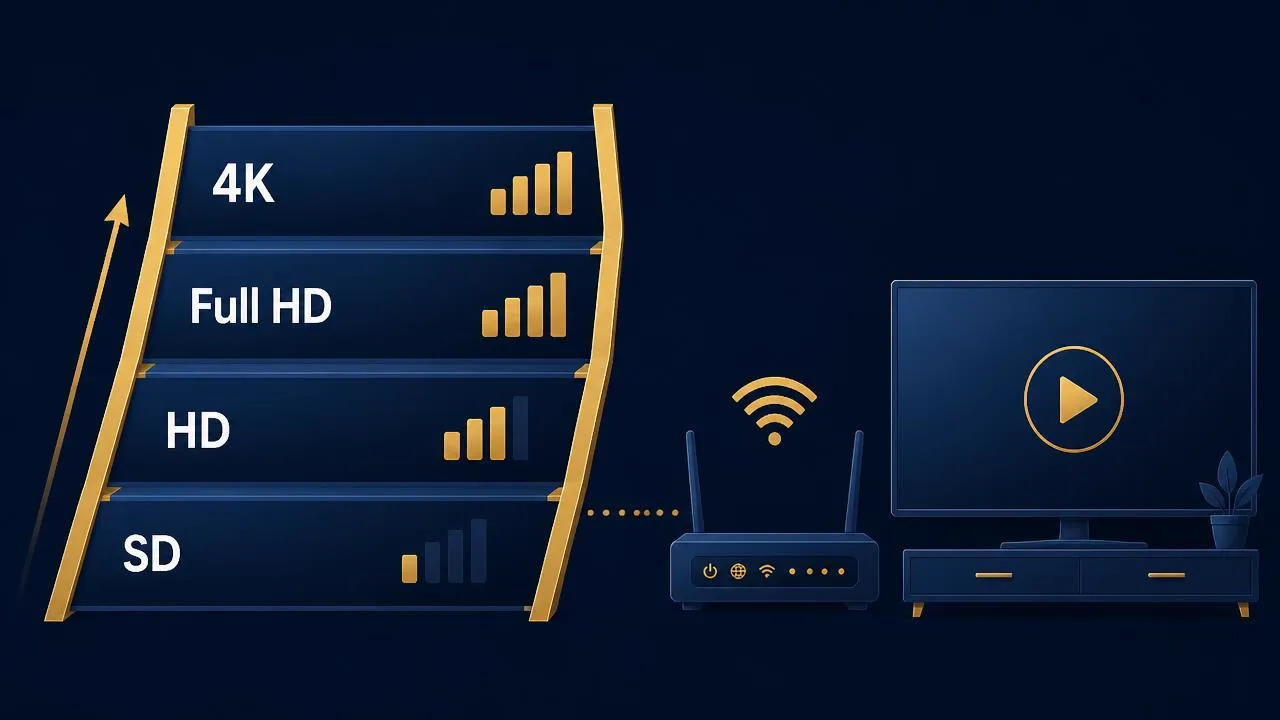
Higher resolutions carry more data per second. Providers and encoders differ, so treat this as a guide to relative demand rather than exact figures:
| Quality | Relative demand | Suits |
|---|---|---|
| SD | Lowest | Older sets, mobile viewing, weak or shared connections |
| HD (720p) | Moderate | Most everyday viewing on modest broadband |
| Full HD (1080p) | Higher | The standard for most UK households on fibre |
| 4K | Highest, and least tolerant of instability | Large televisions with a fast, steady connection — ideally wired |
If you can watch Full HD without issue but 4K stutters, the problem is usually headroom or stability rather than the service itself.
Multiple devices and shared households
Your streaming does not happen in isolation. On a typical evening a UK household might have a 4K stream in the living room, a tablet upstairs, a games console downloading an update and a video call in the back bedroom. The download runs flat out by design and will happily take everything left over.
Reducing contention
- Schedule large downloads and console updates overnight.
- Use your router's quality-of-service settings if it offers them.
- Drop a secondary screen to HD while a 4K stream is running.
Wi-Fi vs Ethernet
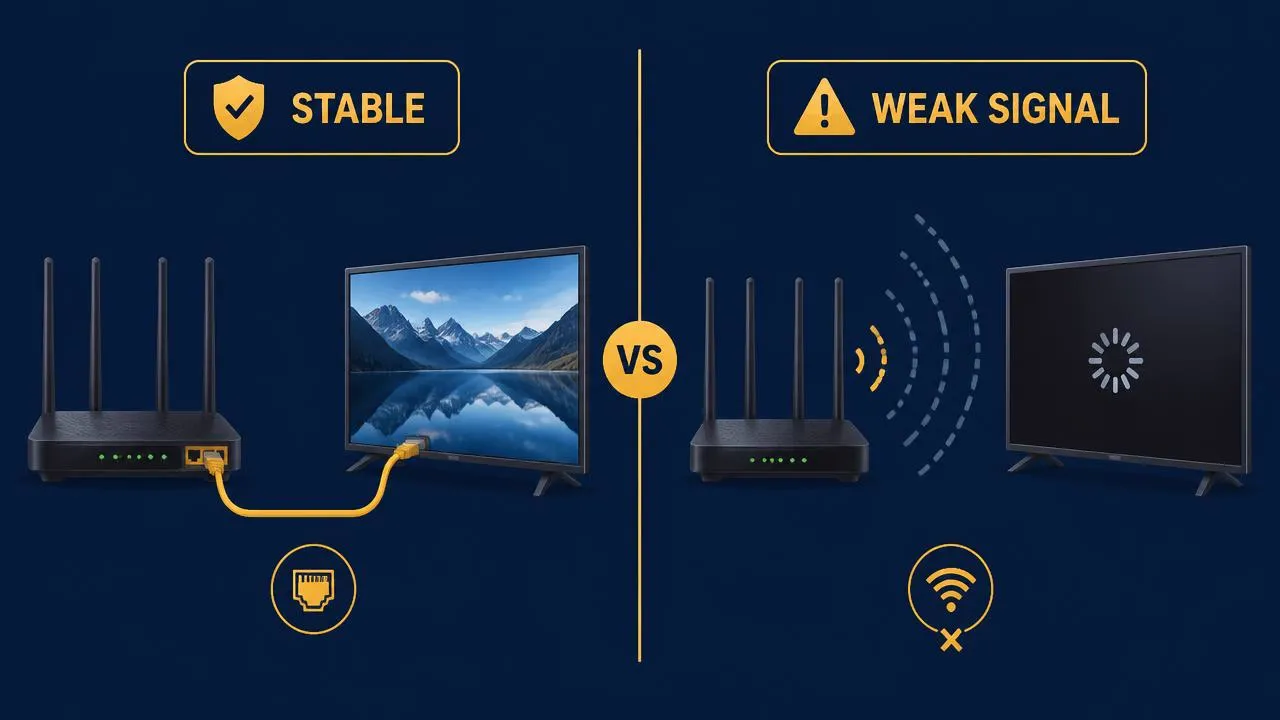
Most streaming problems in UK homes are Wi-Fi problems, not broadband problems. Thick walls, neighbouring networks and a router tucked behind the television all cost signal.
- Ethernet — the most consistent option, and the single best upgrade for a 4K living-room setup.
- 5 GHz Wi-Fi — faster and less congested than 2.4 GHz, but shorter range.
- 2.4 GHz Wi-Fi — better range, far more crowded; fine for SD or HD on a phone.
- Powerline or mesh — a reasonable compromise when running a cable isn't practical.
Congestion and peak-time slowdowns
UK broadband is busiest in the evening, which is exactly when most people watch live television. If your streams are flawless at midday and unreliable at 8pm, congestion — either on your own network or further upstream — is the likely explanation.
Test at both times before drawing conclusions about a provider. A service that behaves perfectly in the afternoon and badly at peak is telling you something about capacity, yours or theirs.
Latency, jitter and packet loss
Three measurements explain most of the streaming problems that raw speed cannot:
- Latency (ping) — how long a request takes to get a response. Affects how quickly channels change.
- Jitter — variation in that timing. High jitter causes brief stalls even on a fast line.
- Packet loss — data that never arrives and has to be re-requested. The usual culprit behind stuttering on Wi-Fi.
How to test your connection properly
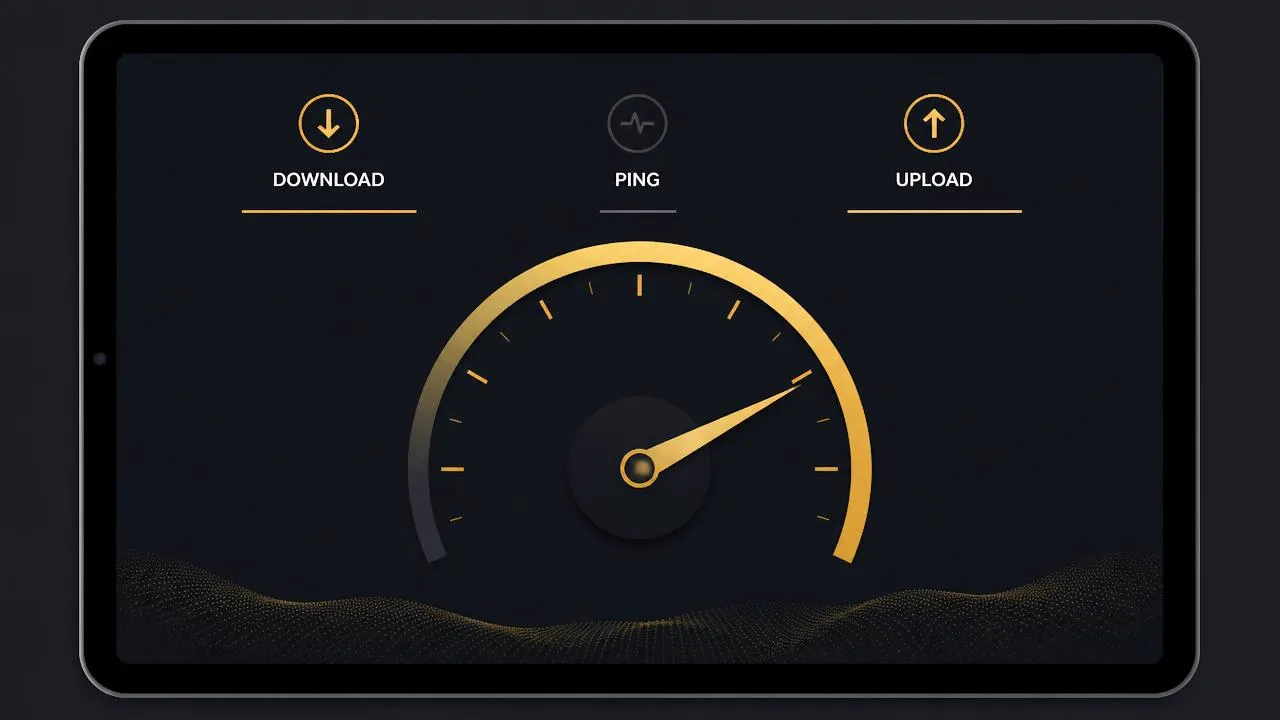
- Test on the device you actually stream with, in the room you watch in — not on a laptop next to the router.
- Run the test at least three times, at different times of day.
- Note download speed, ping and jitter, not just the big number.
- Repeat over Ethernet if you can, to separate a Wi-Fi problem from a broadband one.
- Test again with other devices idle, to see how much headroom you really have.
If the numbers look healthy but the picture still stalls, work through the IPTV buffering checklist next.
Practical ways to improve your line
- Run an Ethernet cable to your main television.
- Move the router into open space rather than a cabinet or behind the TV.
- Split your network so televisions use 5 GHz and low-priority devices use 2.4 GHz.
- Replace an ageing router supplied years ago by your ISP.
- Add a mesh node or powerline adapter for rooms the signal struggles to reach.
- Upgrade your package only after ruling out the in-home network — it is often not the bottleneck.
Watching mostly on a streaming stick? The IPTV Firestick guide covers device-specific tuning too.
Final thoughts
Match your connection to the quality you want, leave headroom for the rest of the household, and fix the Wi-Fi before you upgrade the broadband. Do that and IPTV behaves like ordinary television.
Explore IPTV UK plans with IGIPTV once your line is ready.
Frequently asked questions
Is a faster broadband package always better for IPTV?
Not necessarily. Once your line comfortably exceeds what the stream needs, stability and in-home network quality matter far more than a higher headline speed.
Does IPTV use upload bandwidth?
Only a small amount for requests and acknowledgements. Watching is overwhelmingly a download activity.
How much data does IPTV use?
It scales with resolution and viewing hours — 4K uses considerably more than HD. If you are on a capped connection, check your allowance before switching everything to 4K.
Will a mobile hotspot work for IPTV?
It can, but mobile connections vary through the day and are more prone to interruption, so expect a less consistent picture than fixed broadband.